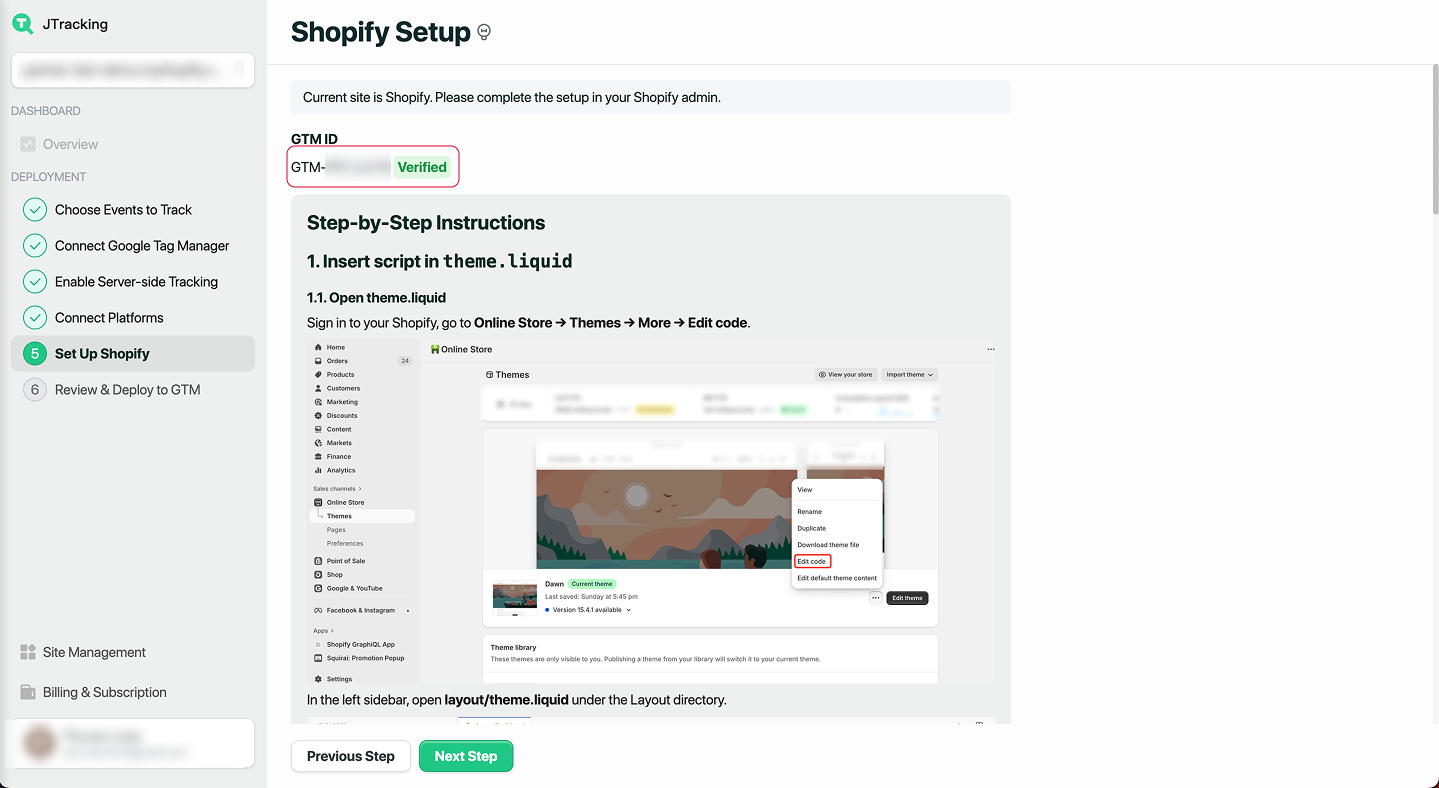
Step-by-Step Shopify Setup

1. Insert script in theme.liquid
1.1. Open theme.liquid
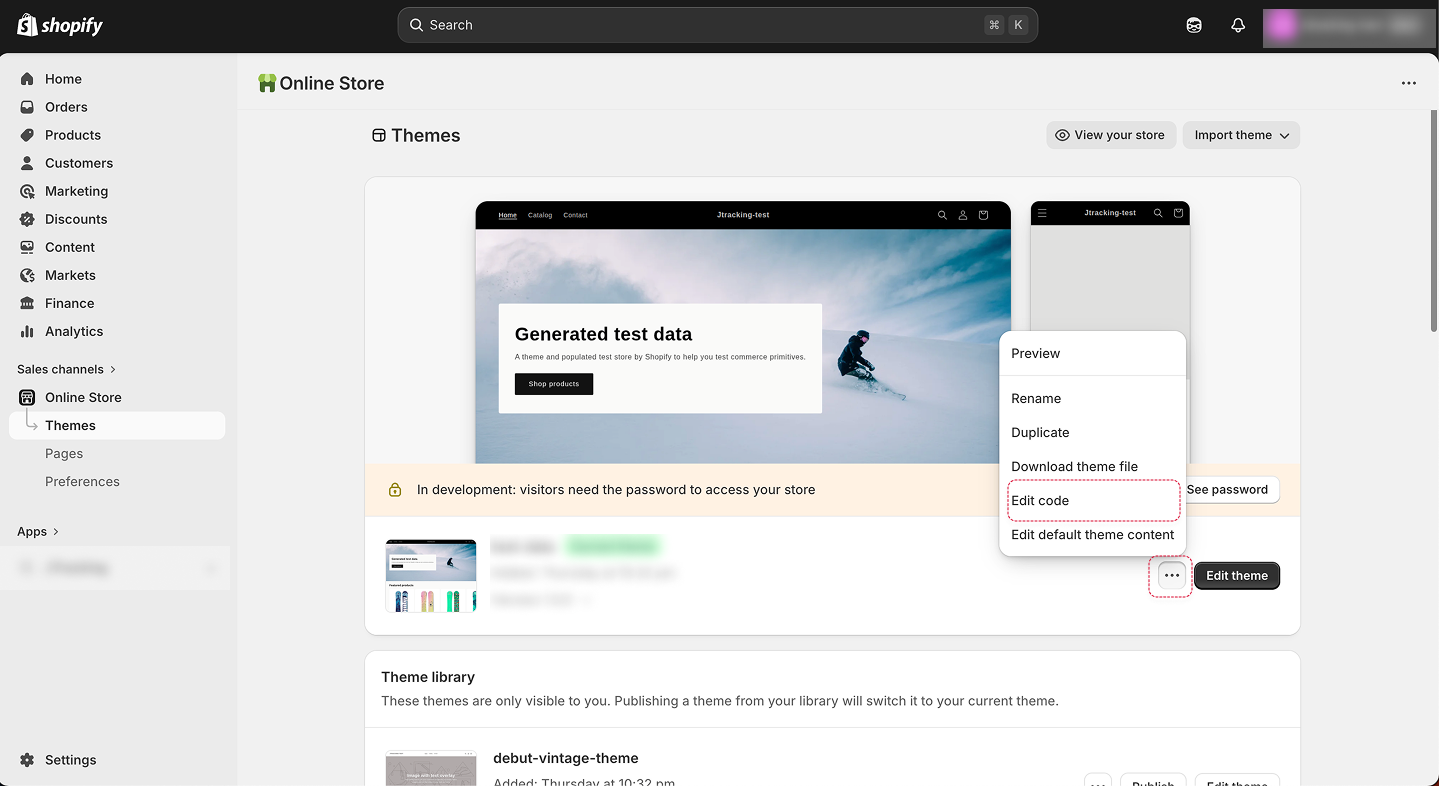
Sign in to your Shopify, go to Online Store → Themes → More → Edit code.
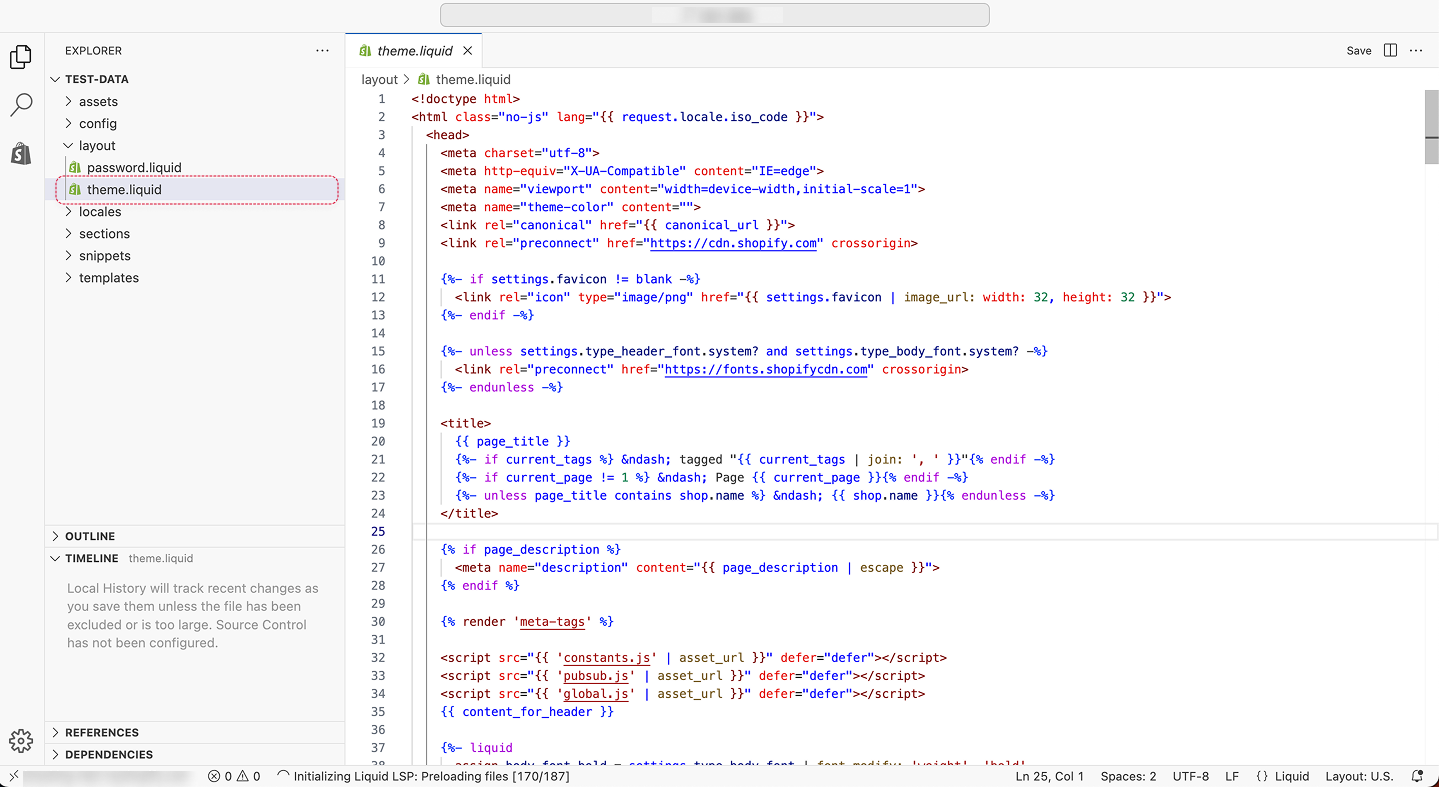
In the left sidebar, open layout/theme.liquid under the Layout directory.
1.2. Code
Paste the following script above the closing </head> tag in your layout/theme.liquid file.
JTracking Snippet Generator
Generate your custom tracking code for Shopify theme.liquid.
Please use the correct GTM ID format:
GTM-XXXXXXX
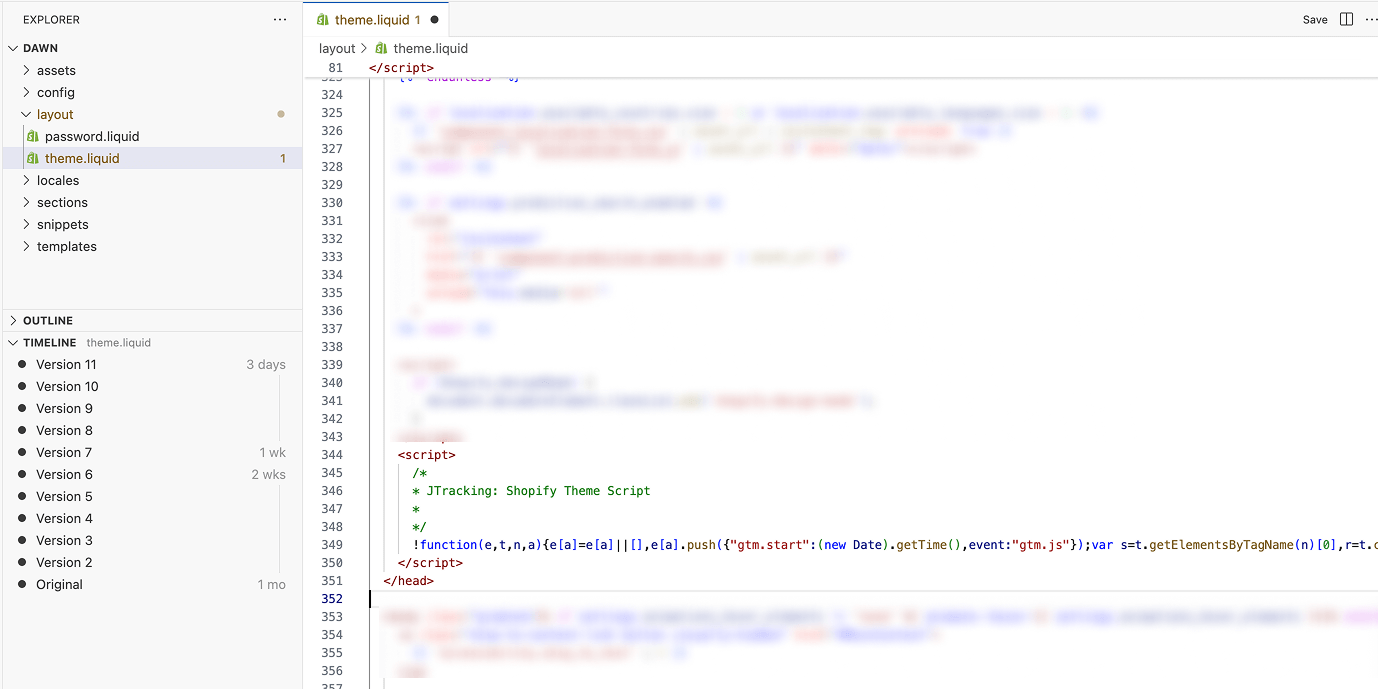
Finally, click SAVE from the top right corner.
2. Add Custom pixel
2.1. Add Customer Events
Sign in to your Shopify, go to Settings → Customer events → More views → Custom pixels.
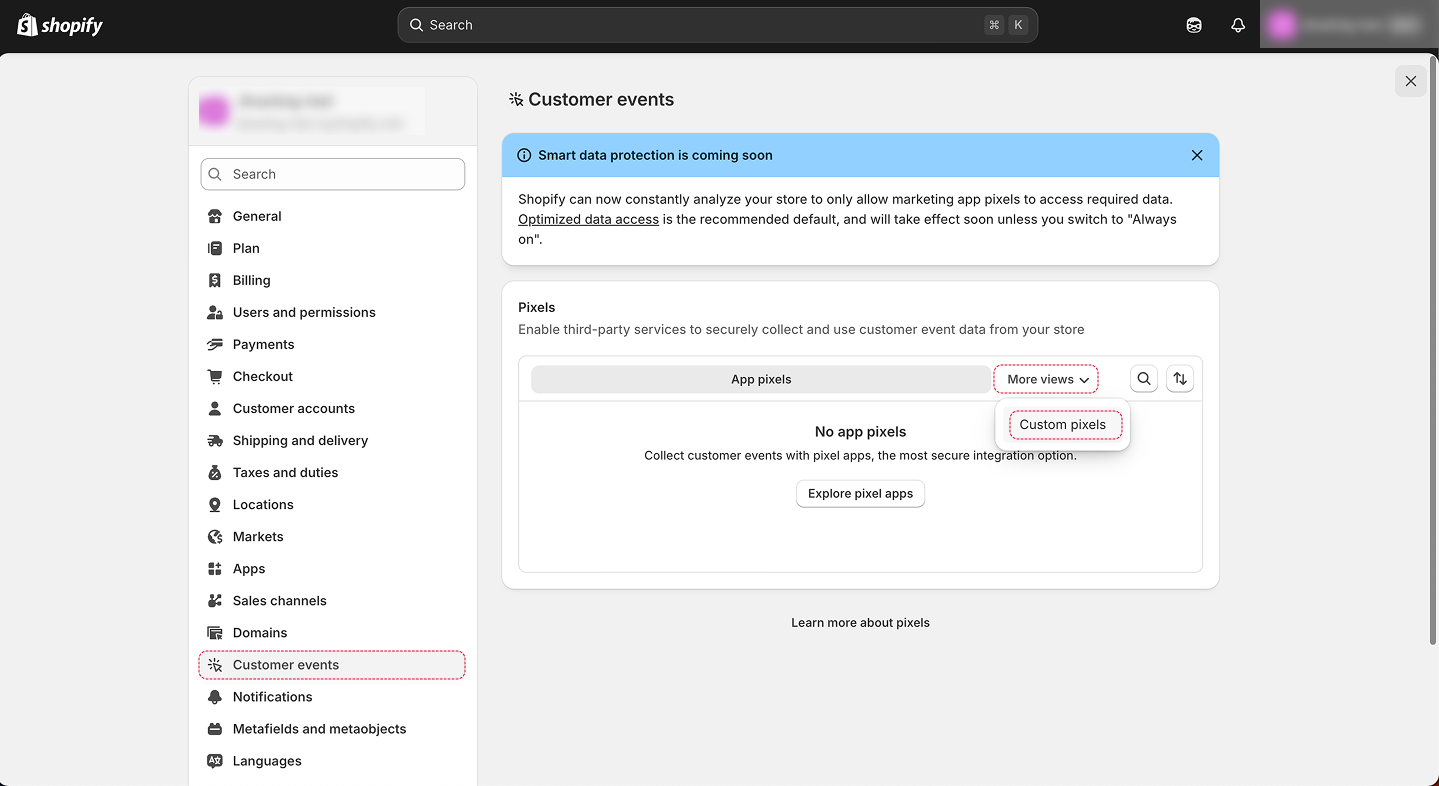
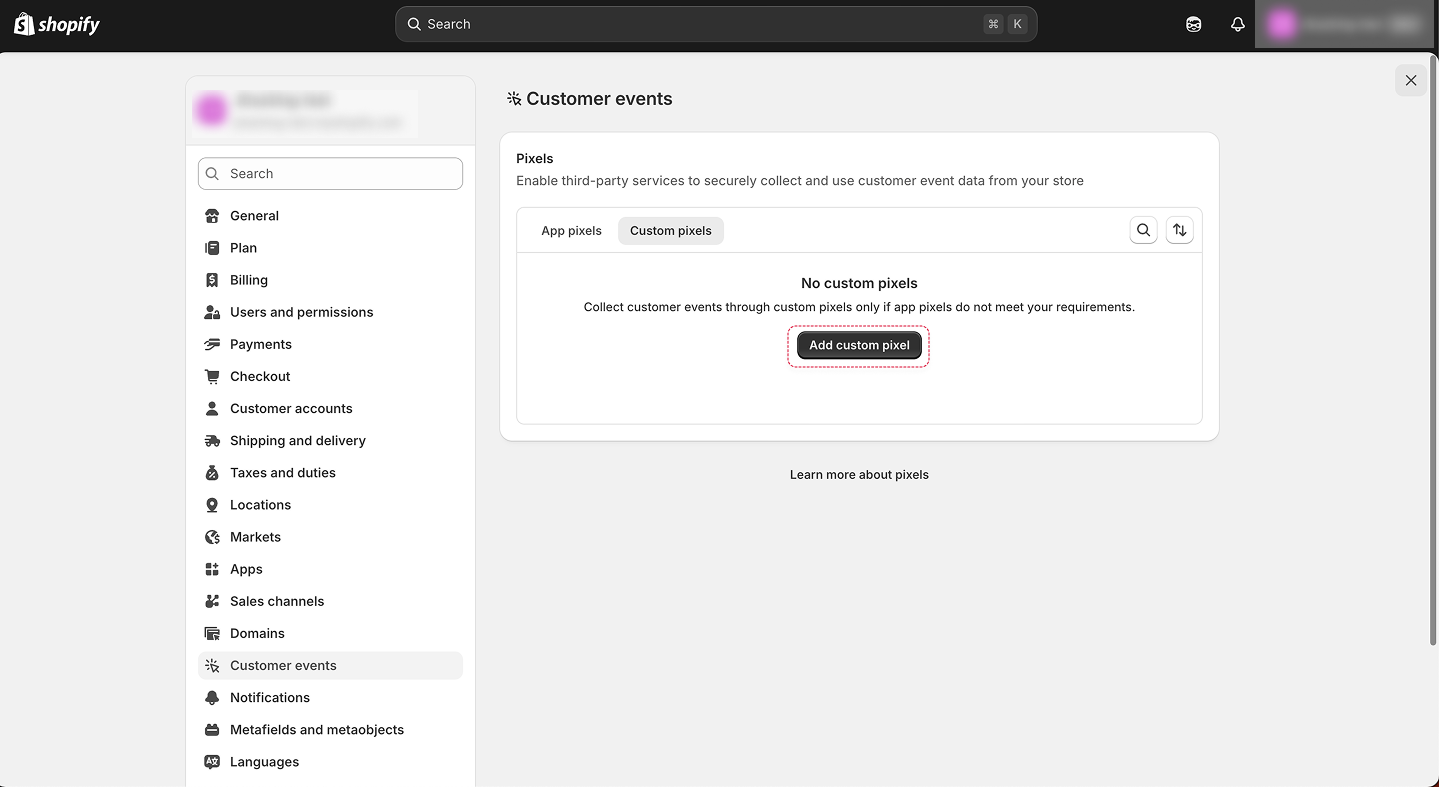
Click Add custom pixel.
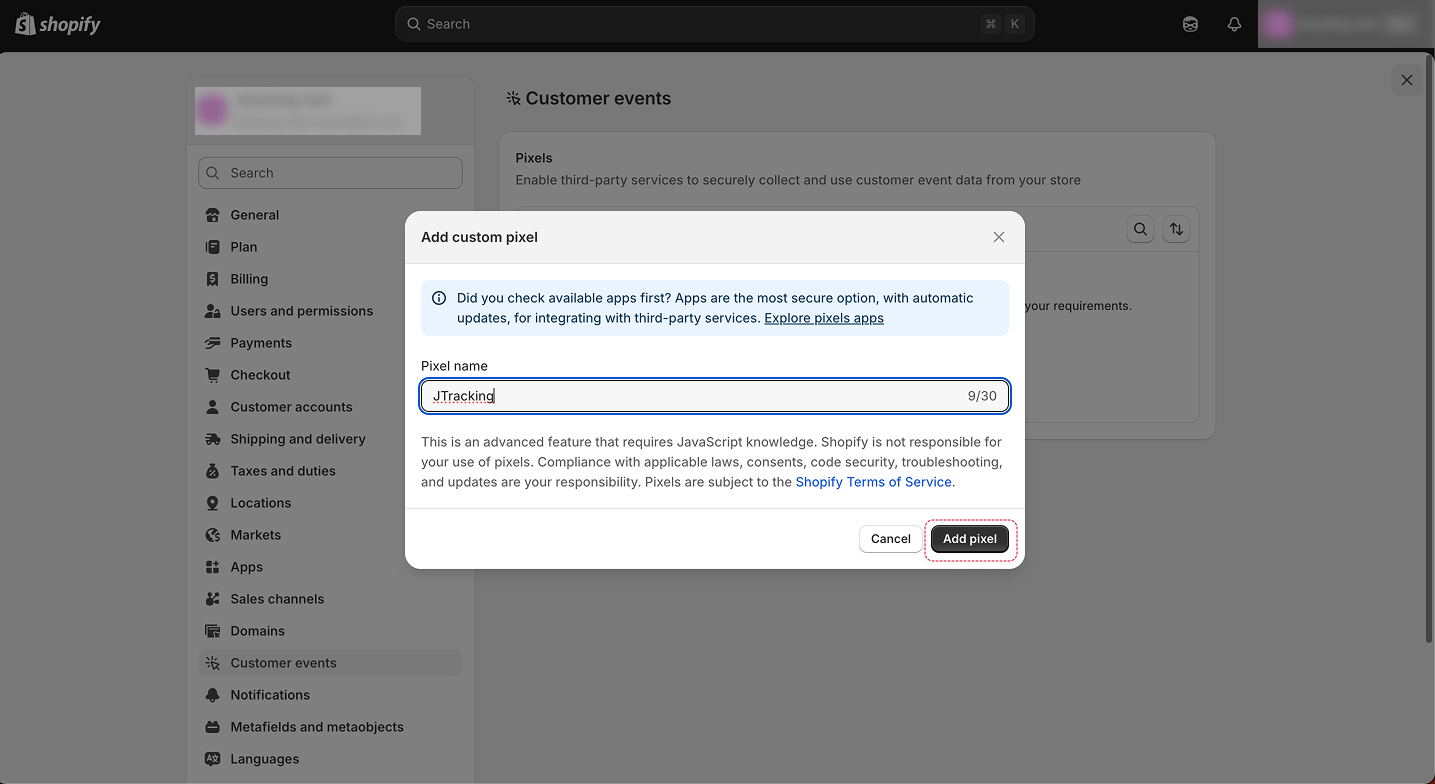
Set Pixel name as JTracking and Add pixel.
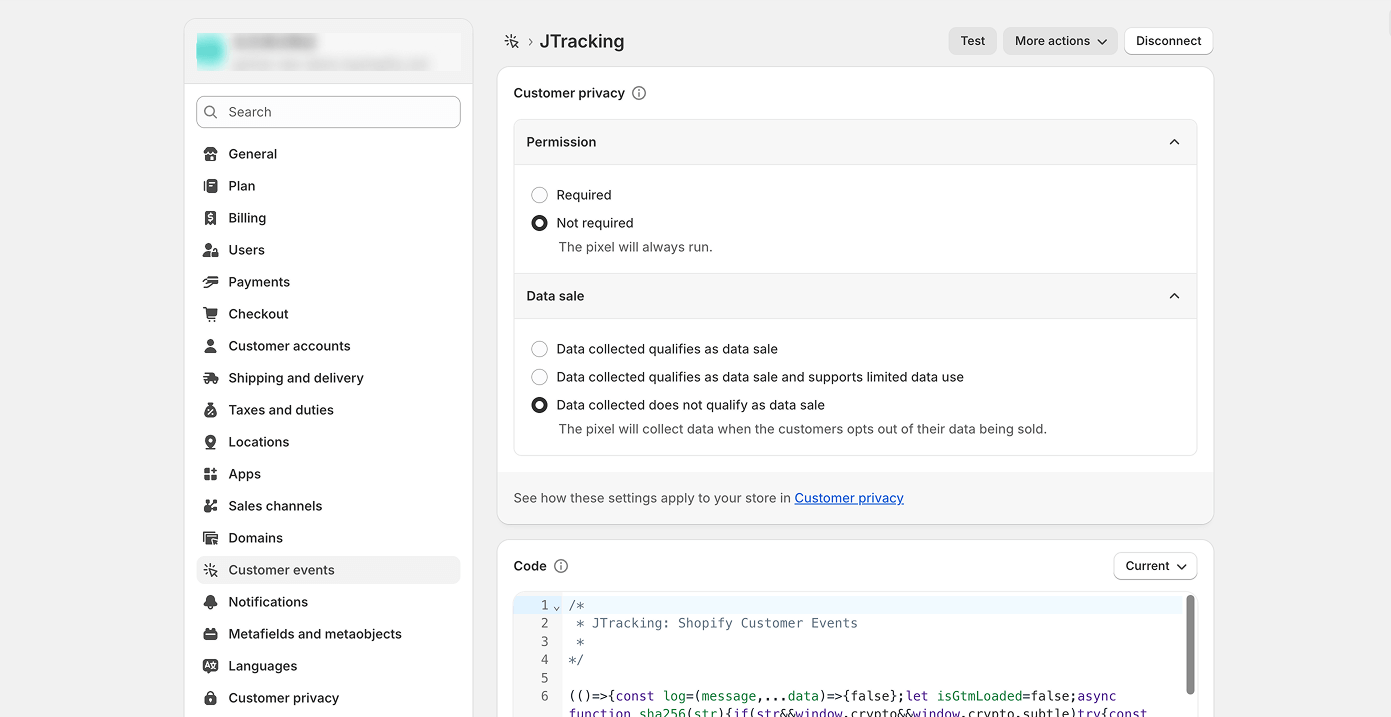
2.2. Customer Privacy
Do the following settings:
- Permission: Not required
Data sale: Data collected does not qualify as data sale
2.3. Code
Copy-paste the following script to the Code field.
JTracking Snippet Generator
Generate your custom script for Shopify Customer Events.
Please use the correct GTM ID format:
GTM-XXXXXXX
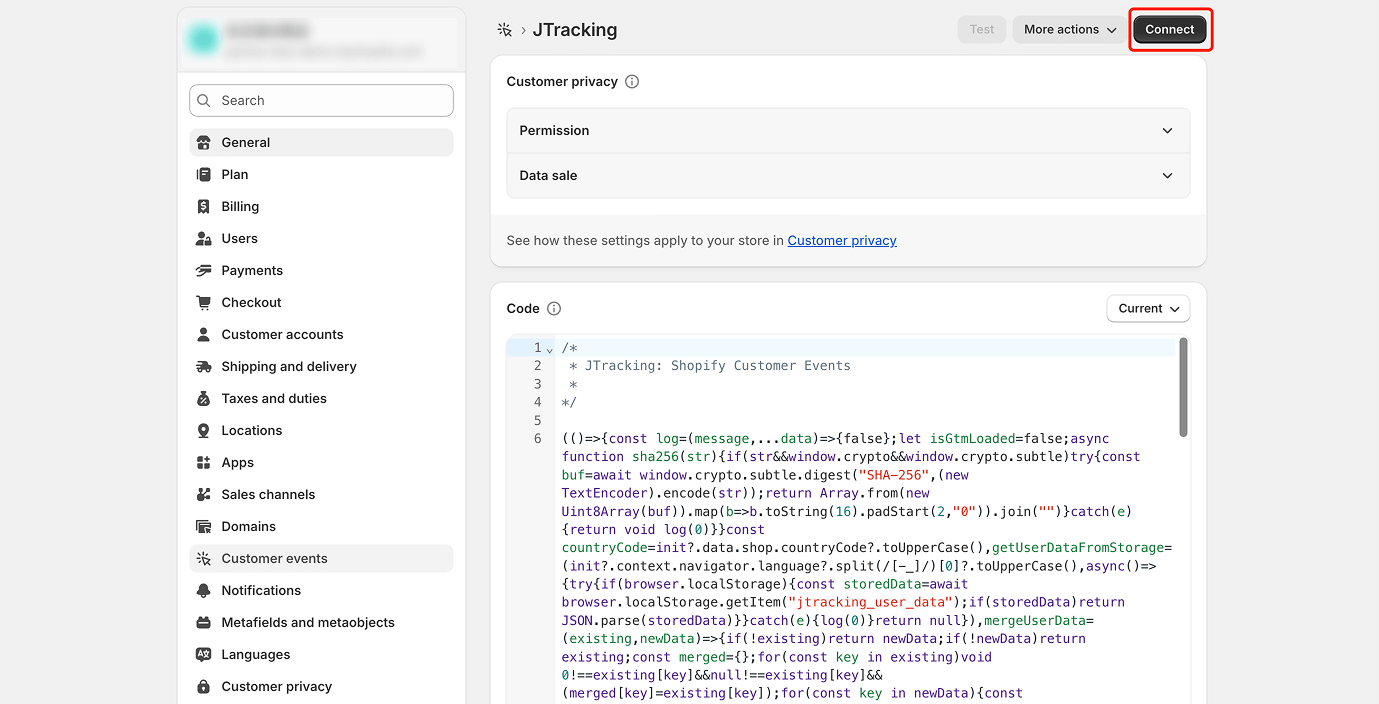
Finally, click Save.
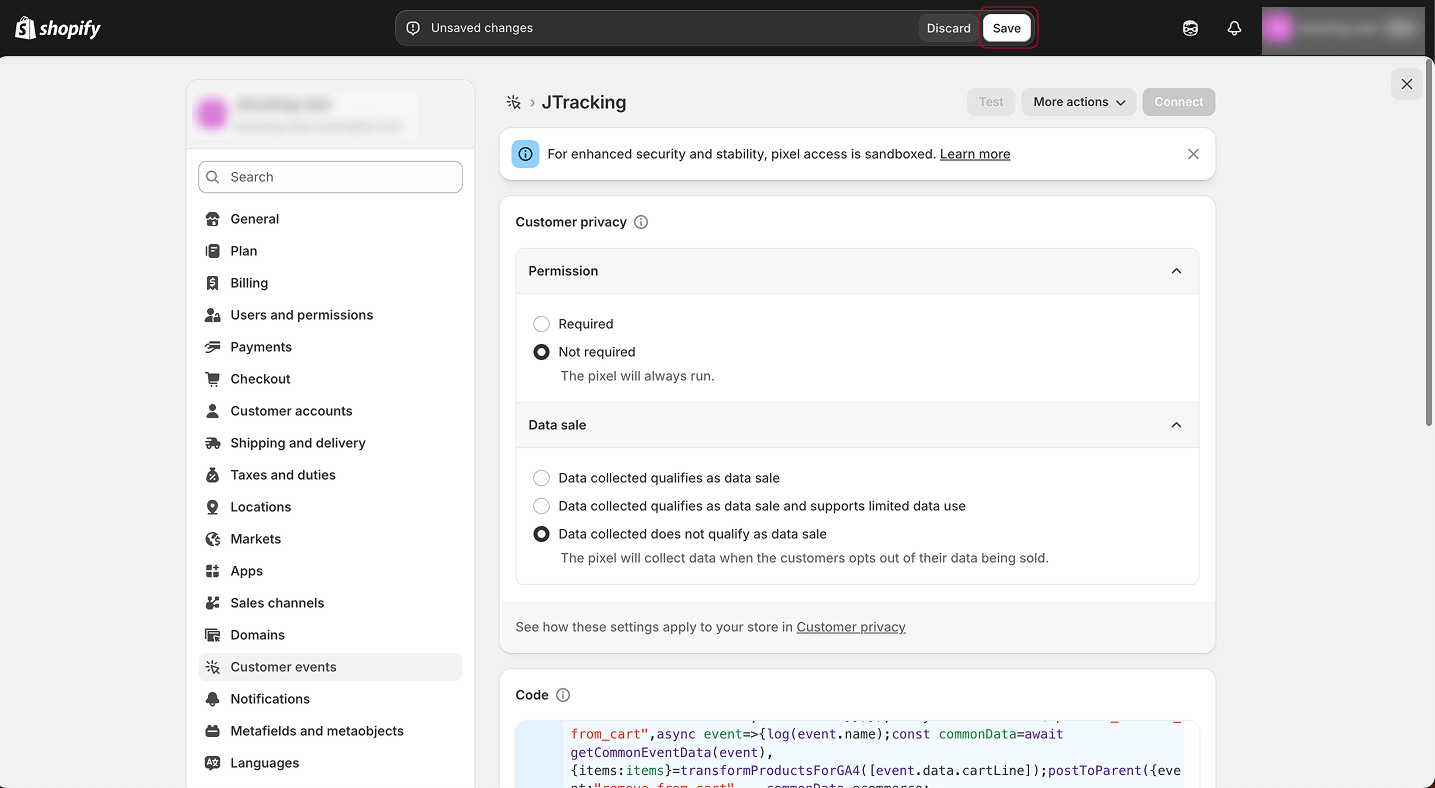
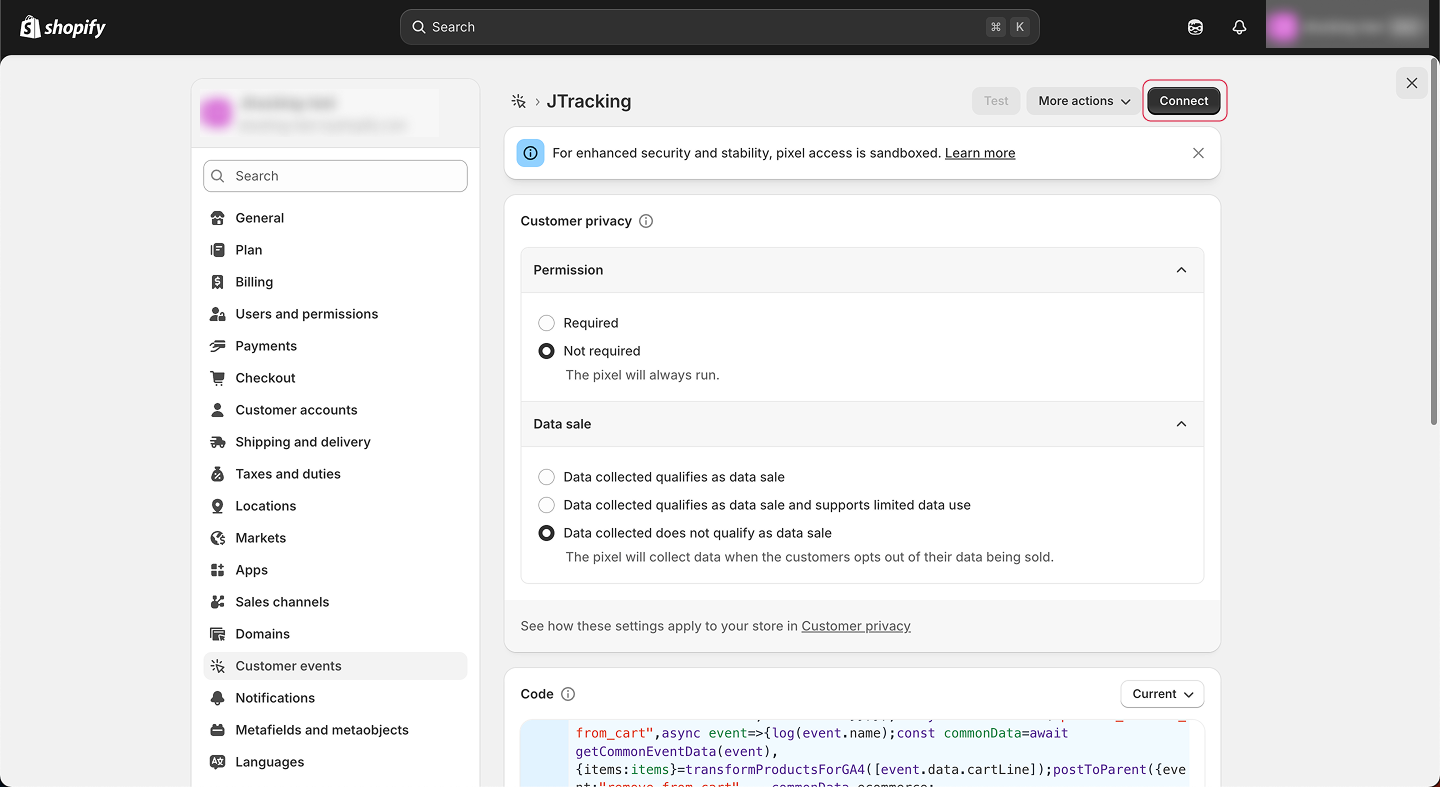
And then Connect from the upper right corner.
3. Verification
Go back to JTracking and Click Verify in DEPLOYMENT/Set Up Shopify.
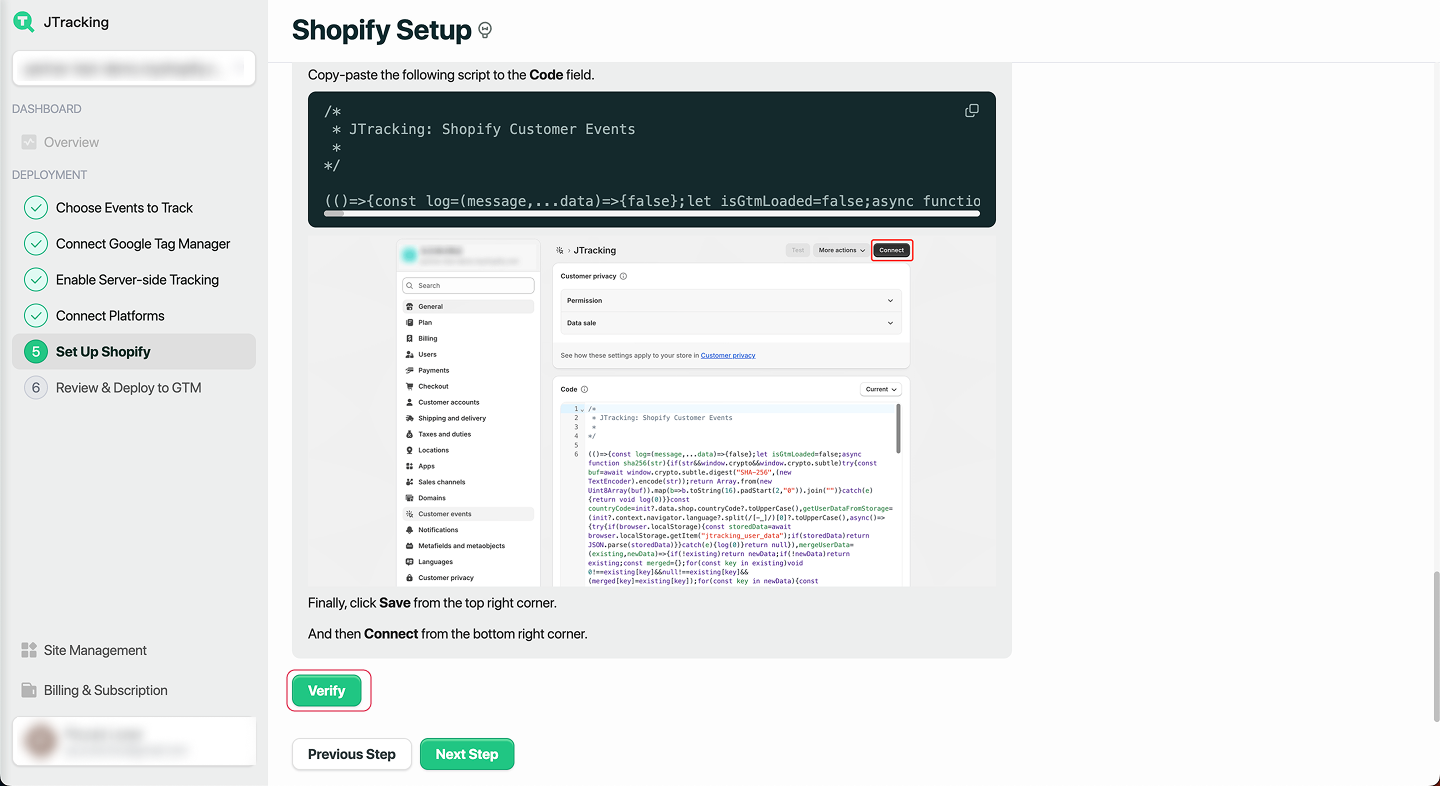
If Shopify is set up correctly, the status will show as 'Verified'. You can then click 'Next Step' to continue.